> For the complete documentation index, see [llms.txt](https://etherfi.gitbook.io/etherfi/llms.txt). Markdown versions of documentation pages are available by appending `.md` to page URLs; this page is available as [Markdown](https://etherfi.gitbook.io/etherfi/~/changes/8Jd9g7SmBTNMrbOKtUZq/getting-started/node-operators-guide.md).
# Node operators guide
The goal of this guide is to help our node operator partners connect to our web application, bid on the right to run etherfi nodes, receive keys when they win auctions, decrypt and import keys into their own infrastructure.
## **Web App**
**Acquire enough ETH** to interact materially with etherfi. **Connect to** [**ether.fi**](http://ether.fi) **web application. Once connected, each Node Operator partner will perform a one time registration process.**
### Web App One-time Registration Process:
* With a web browser, **navigate** to:
* **Connect** your wallet top right button:
* You should be directed to the Stake tab. As a Node Operator, we’re interested in the Auction actions. Click on **Auction tab** and **Download** etherfi desktop app (to generate public private key pairs for secure keystore passing from stakers):
* This will take you to the following url:
* **Click Assets** and locate the version that best matches your system (linux, mac, windows):
* **Save** the file to your machine, **Unzip** it, **double click** on the application to run it. You should see an interface like the following on mac \[\*if you are prevented from opening the application, on a mac go to apple > system preferences > security and privacy and see if “Allow apps downloaded from:” has BOTH **app store and identified developers** selected; if not, click on the lock, select, lock again]. Click **open**:
* You should now be using the desktop application. On the top right, **select Node Operator**:
* You should see the **Generate Encryption Keys** interface. Here we’ll generate and store the keys used to receive and decrypt encrypted validator keys from stakers:
* **Leave** keys at 7000 \[\*in the future, we will have an xpub], **select** a secure password, **select** a save path, and click **Generate Keys**:
* You should see that you’ve generated a set of publicEtherfiKeystore-.json and a privateEtherfiKeystore-.json files. Click **Finish**, and you should be able to navigate to your specified directory and see your files.
* The **public keys** will be published on ipfs for stakers to use encrypting keystore files.
* The **private keys** should be kept safe (backed up, not lost, …); they’ll be used to decrypt keystore files from stakers.
* **PLEASE BACKUP SAFELY ALL THESE KEYS AND PASSWORD. THEY’RE REQUIRED FOR ACCEPTING STAKING REQUESTS AND DECRYPTING THE VALIDATOR KEYS.**
* We are now **done** with the desktop application.
* **Return** to the web application, **select Auction** tab, and **click** the upload space to select your publicEtherfiKeystore file, then click **Register Public Keys**:
* If your IPFS upload transaction succeeds, you should now be able to bid in the Node Operator **Auction.** Enter the number of bids you want to post, and the price per bid in ETH below it. **Click** Bid now:
* You should now see your bids posted in the top right panel labeled: “Your Bids” as well as the larger auction panel “Competing Bids”. These can be easily cancelled with funds returned as well:
**Because this is an auction, if a node operator is not working any bids in the auction contract, they will not receive any stake requests from stakers. Each node operator partner will want to develop, independently or with us, a means for monitoring their bids and keeping bids in the market.**
### Web App Dashboard
After connecting, you’ll have access to the web app’s dashboard. This dashboard has a view for both stakers and node operators. Select “Operator”:
**Node Operator Keys**
If you click on “view keys”, you can see an array of your public keys published to ipfs. These are the keys stakers use via our protocol to share a secret with a given node operator (you). The numerator is the number of keys *used;* the denominator is the number of keys you *published*.
**Validators**
The panel below shows all your validators with various related metadata:
From this panel you can perform a set of actions. All can be done using checkboxes and the “Select Batch Action” drop down or using the three dot menu next to each validator.
**Download and Decrypt Validator Keys:**
* Click on the three dots next to the validator you’d like to download the encrypted keys for. Select “Download Keys”:
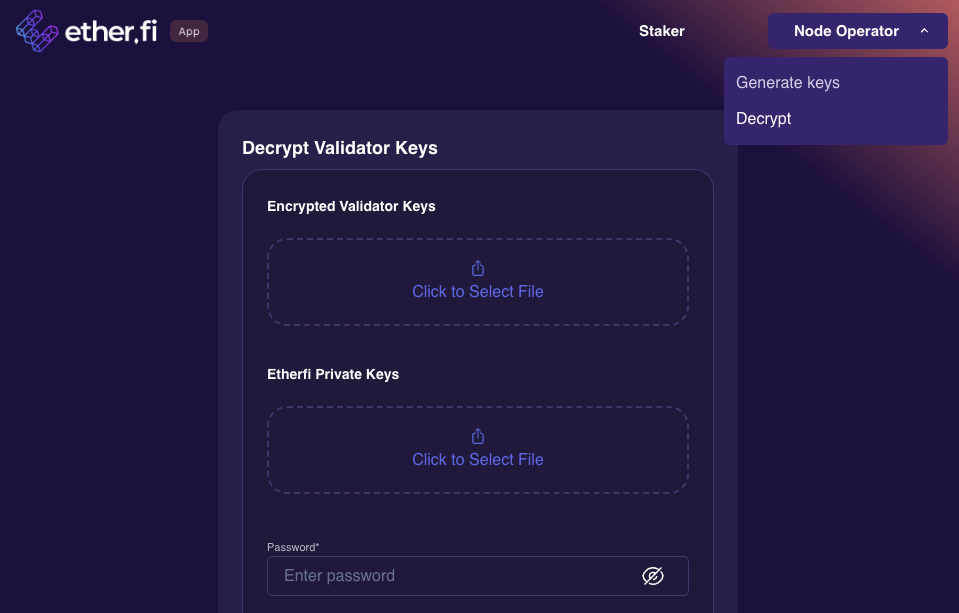
* Open the desktop app, select Node Operator, select Decrypt from the menu:
1. **Click** to select the encrypted validator key file you just downloaded.
2. **Click** to select the private encryption keys you generated here: The goal of this guide is to help our node operator partners connect to our web application, bid on the right to run etherfi nodes, receive keys when they win auctions, decrypt and import keys into their own infrastructure.
3. **Enter** the password you used in that same step
4. **Click** and “Select save path”
5. **Click** and “Decrypt Validator Keys”
You should now have a directory:
And inside this directory you should have two files:
* The first password file contains the Staker’s password used to encrypt their validator key with the ethereum staking cli
* The second is the actual validator key you’ll need to run the validator.
You can inject these details into your backend infrastructure as you see fit.
**Skim Rewards**
**Exit**
## Scripting Back End Solution: etherfi-sync-client
---
# Agent Instructions
This documentation is published with GitBook. GitBook is the documentation platform designed so that both humans and AI agents can read, navigate, and reason over technical content effectively. Learn more at gitbook.com.
## Querying This Documentation
If you need additional information that is not directly available in this page, you can query the documentation dynamically by asking a question.
Perform an HTTP GET request on the current page URL with the `ask` query parameter, and the optional `goal` query parameter:
```
GET https://etherfi.gitbook.io/etherfi/~/changes/8Jd9g7SmBTNMrbOKtUZq/getting-started/node-operators-guide.md?ask=&goal=
```
`ask` is the immediate question: it should be specific, self-contained, and written in natural language.
`goal` is optional and describes the broader end goal you are ultimately trying to accomplish on behalf of the user. GitBook uses it to tailor the answer towards what is most useful for that goal.
The response will contain a direct answer to the question and relevant excerpts and sources from the documentation.
Use this mechanism when the answer is not explicitly present in the current page, you need clarification or additional context, or you want to retrieve related documentation sections.
.png?alt=media&token=6ffc8981-58e8-451f-a014-01c7ad6d8a63)
.png?alt=media&token=2f848070-4b5e-47c2-b2fe-6e9a64f3692b)

.png?alt=media&token=4dce91e3-5c18-4fde-b067-9a98bf47d3a1)